
MCP
Connect AI agents like Claude, ChatGPT, and Cursor to your semantic layer using the Model Context Protocol. One URL, governed access to your metrics and dimensions.
Bonnard exposes your semantic layer as a remote MCP server. Add one URL to your agent platform and it can explore your data model, run queries, and render charts — all through the Model Context Protocol.
MCP URL
https://mcp.bonnard.dev/mcpOn first use, your browser opens to sign in — the agent receives a 30-day token automatically. No API keys, no config files, no secrets to rotate.
Connect your agent
Bonnard works with any MCP-compatible client:
- Claude Desktop — Add as a custom connector
- ChatGPT — Add via Settings > Apps (Pro/Plus)
- Cursor — Add via Settings > MCP or
.cursor/mcp.json - Microsoft Copilot Studio — Add as an MCP tool with OAuth 2.0 authentication
- VS Code / GitHub Copilot — Add via Command Palette or
.vscode/mcp.json - Claude Code — Add via
claude mcp addor.mcp.json - Windsurf — Add via MCP config
- Gemini CLI — Add via
.gemini/settings.json
Setup
Claude Desktop
- Click the + button in the chat input, then select Connectors > Manage connectors
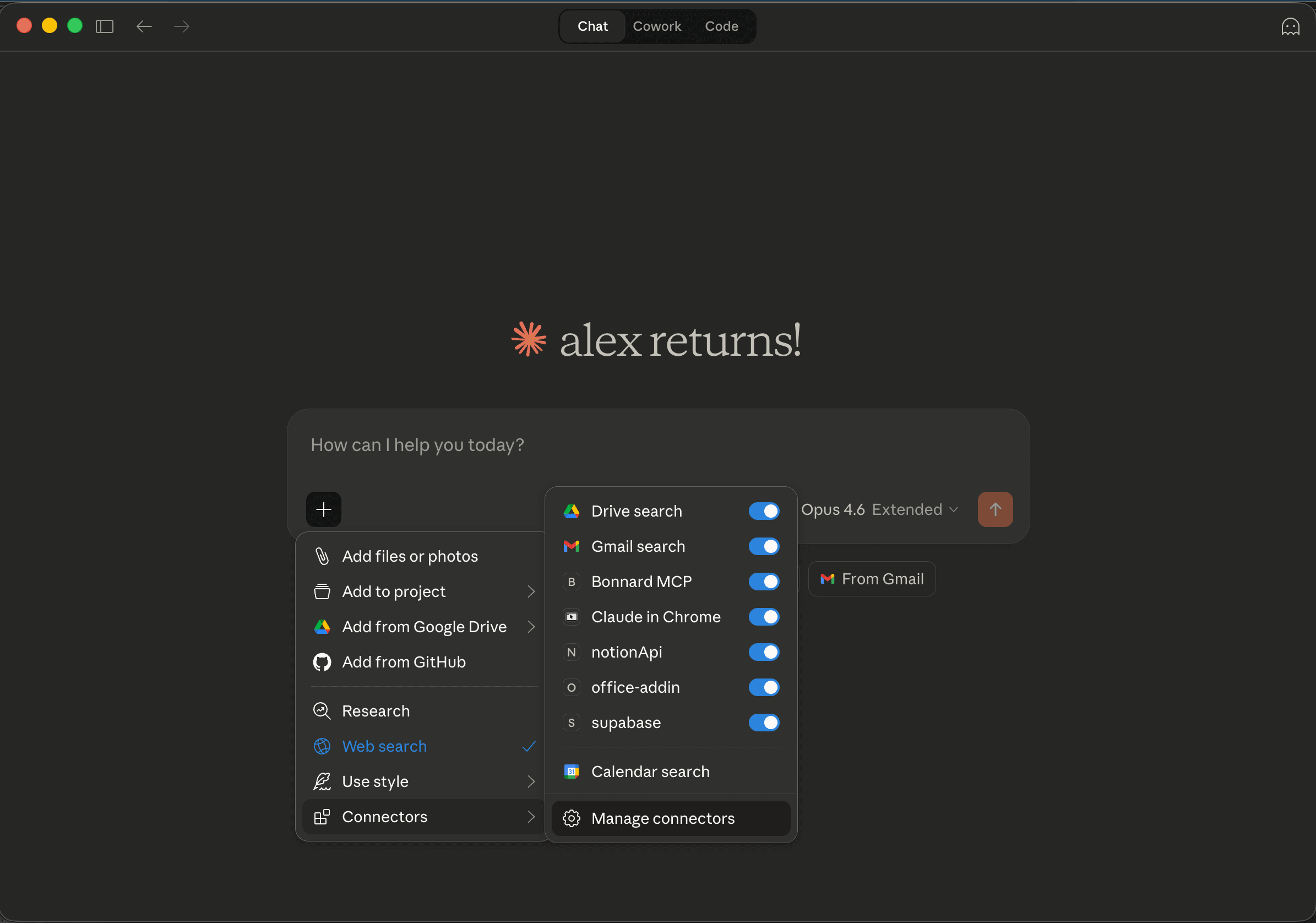
- Click Add custom connector
- Enter a name (e.g. "Bonnard MCP") and the MCP URL:
https://mcp.bonnard.dev/mcp - Click Add
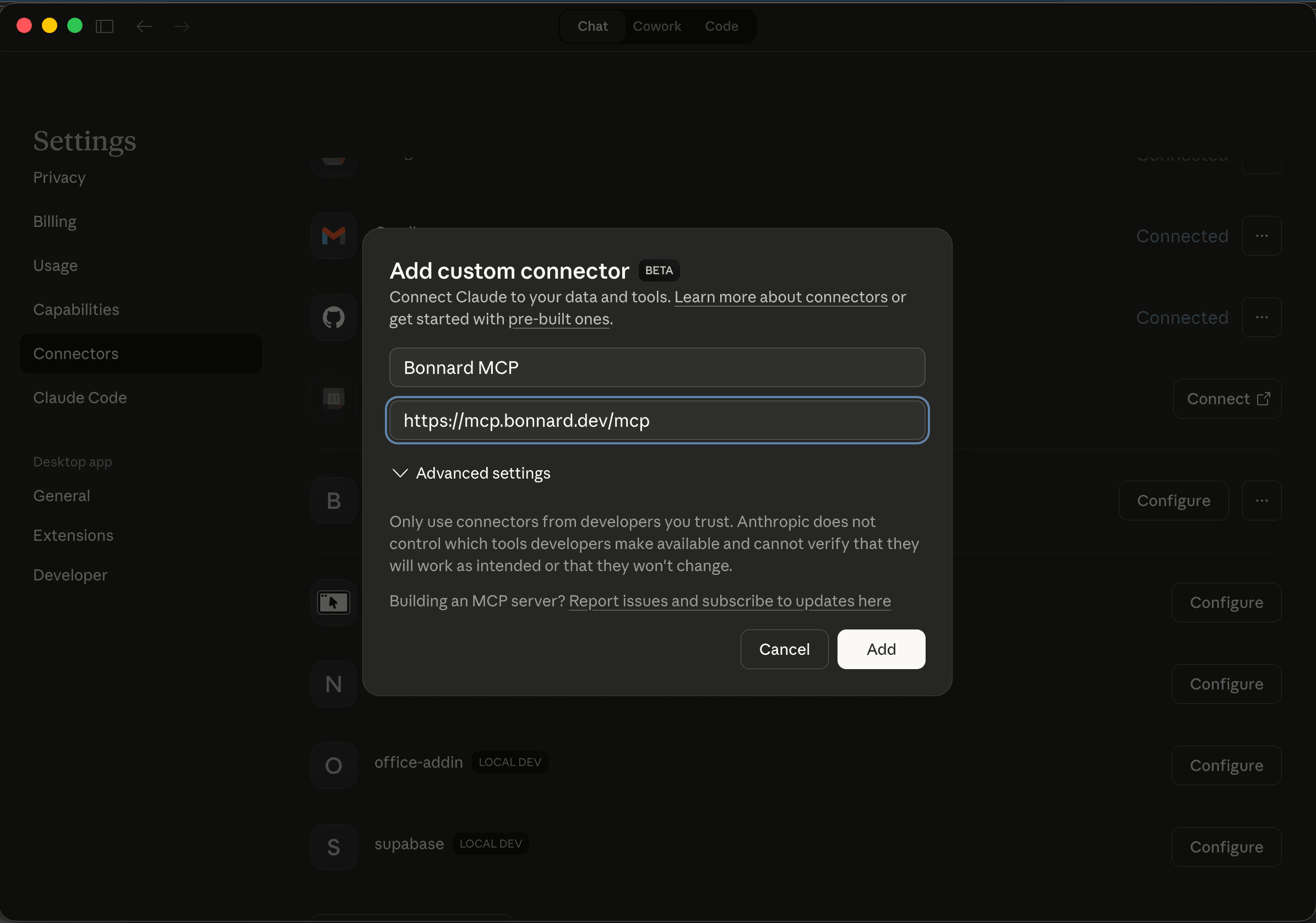
Once added, enable the Bonnard connector in any chat via the Connectors menu.
Remote MCP servers in Claude Desktop must be added through the Connectors UI, not the JSON config file.
ChatGPT
Custom MCP servers must be added in the browser at chatgpt.com — the desktop app does not support this.
- Go to chatgpt.com in your browser
- Open Settings > Apps
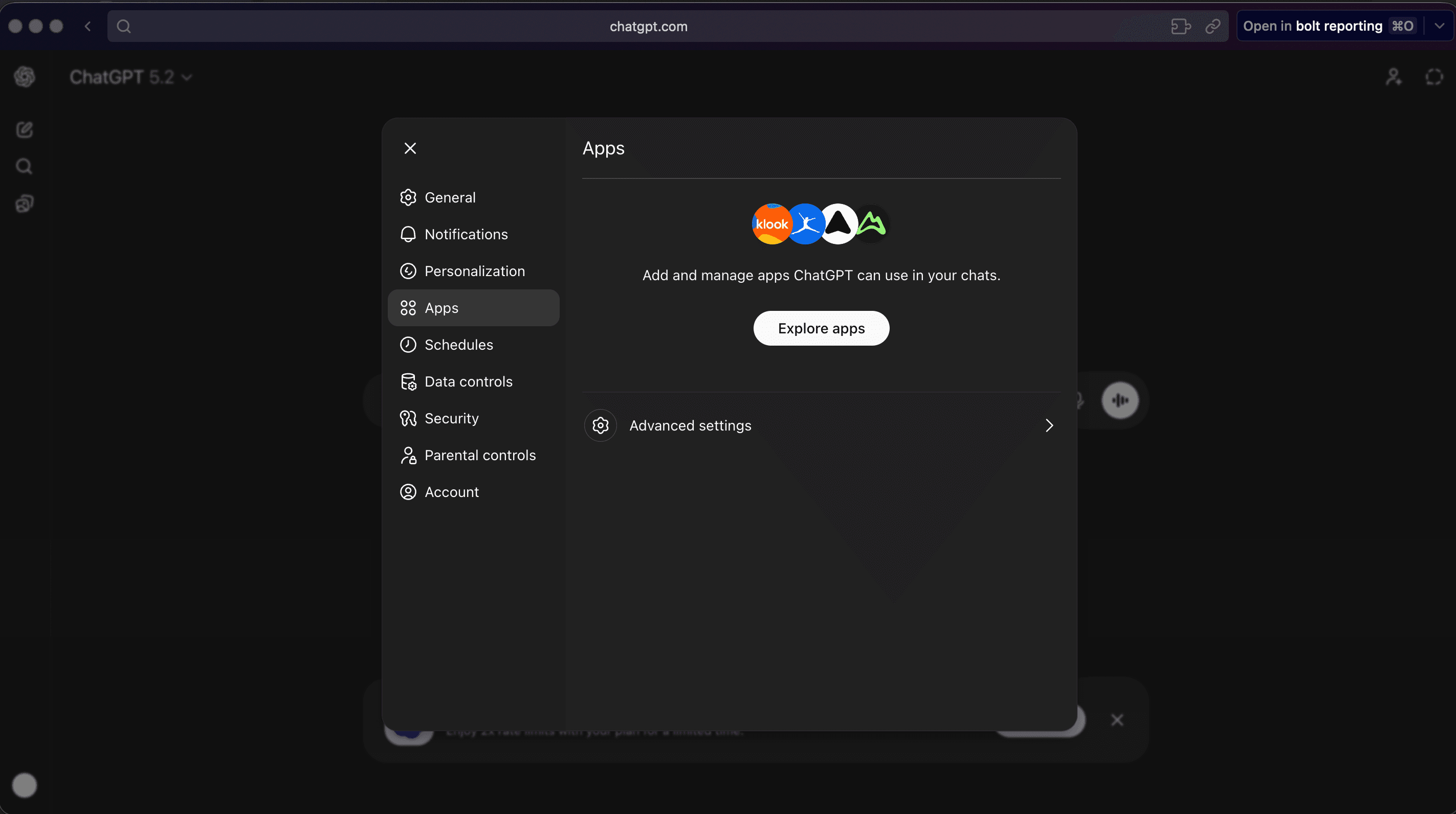
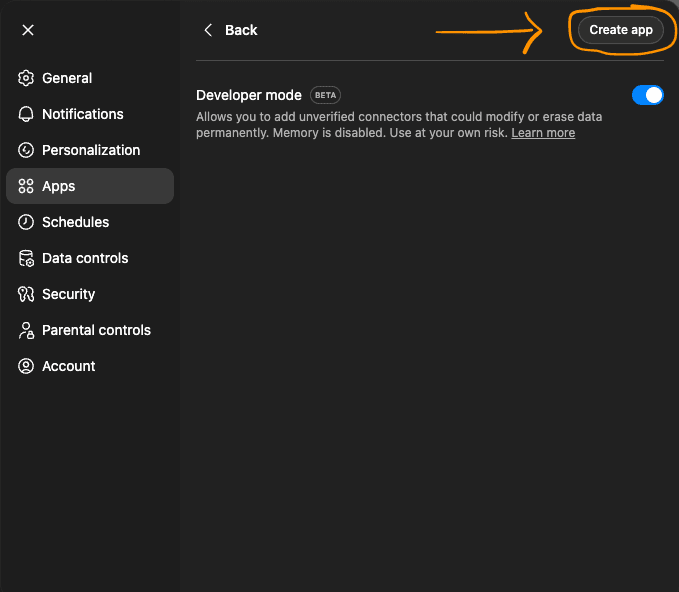
- Click Advanced settings, enable Developer mode, then click Create app
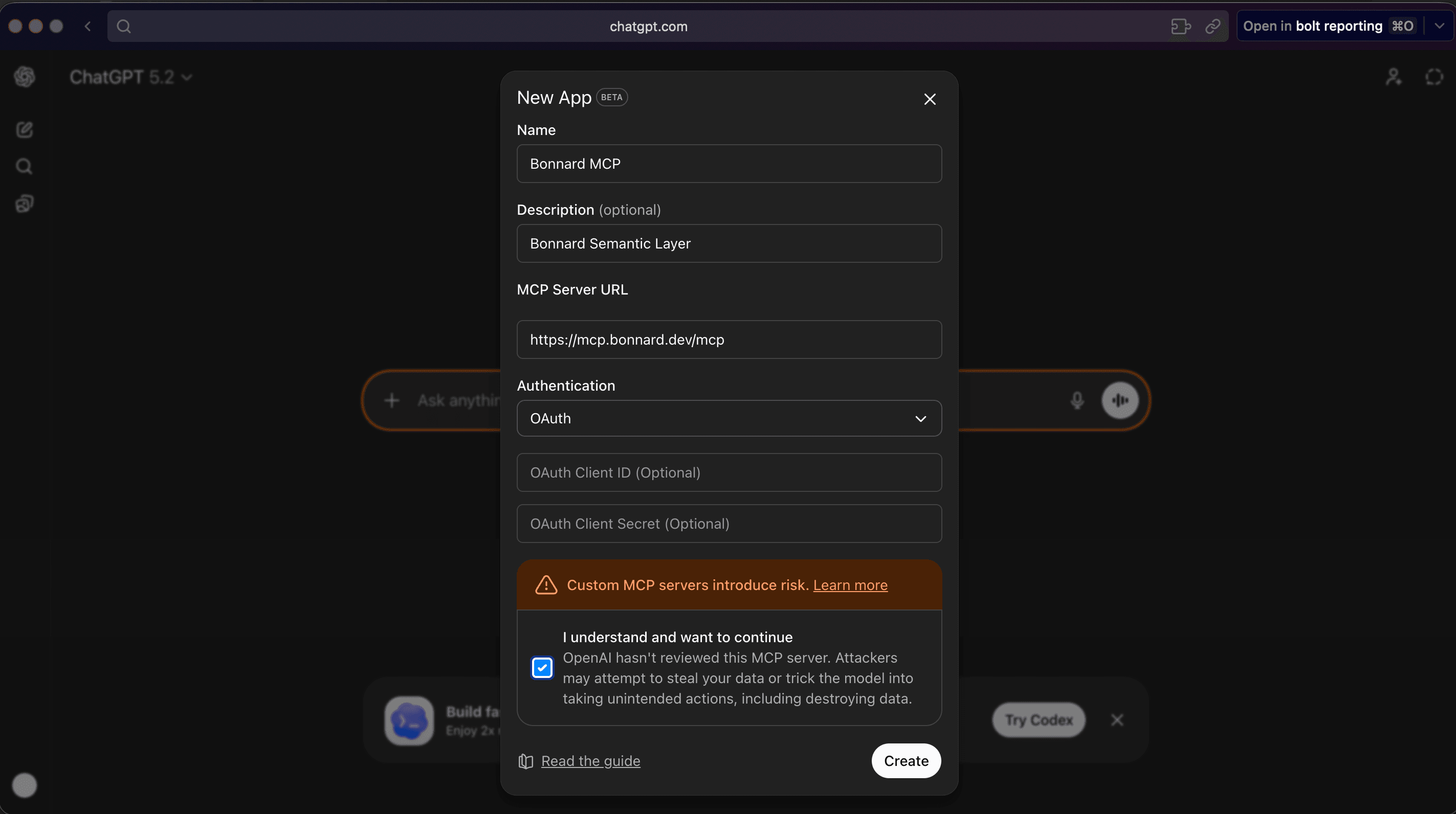
- Enter a name (e.g. "Bonnard MCP"), the MCP URL
https://mcp.bonnard.dev/mcp, and select OAuth for authentication - Check the acknowledgement box and click Create
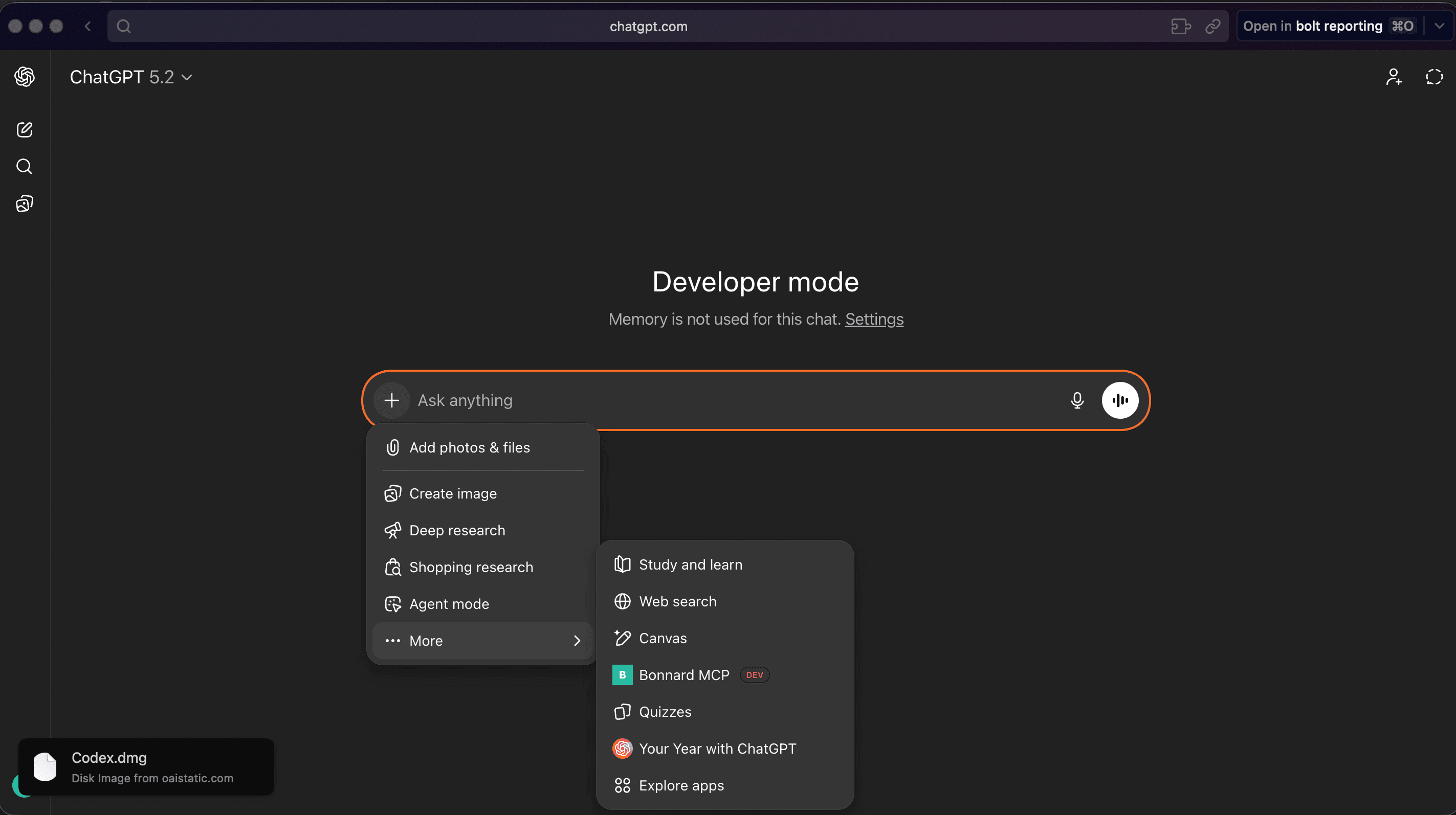
Once created, the Bonnard connector appears under Enabled apps:
Available on Pro and Plus plans.
Cursor
Open Settings > MCP and add the server URL, or add to .cursor/mcp.json in your project:
{
  "mcpServers": {
    "bonnard": {
      "url": "https://mcp.bonnard.dev/mcp"
    }
  }
}
On first use, your browser will open to sign in and authorize the connection.
VS Code / GitHub Copilot
Open the Command Palette and run MCP: Add Server, or add to .vscode/mcp.json in your project:
{
  "servers": {
    "bonnard": {
      "type": "http",
      "url": "https://mcp.bonnard.dev/mcp"
    }
  }
}
On first use, your browser will open to sign in and authorize the connection.
Claude Code
Run in your terminal:
claude mcp add --transport http bonnard https://mcp.bonnard.dev/mcpOr add to .mcp.json in your project:
{
  "mcpServers": {
    "bonnard": {
      "type": "http",
      "url": "https://mcp.bonnard.dev/mcp"
    }
  }
}
Windsurf
Open Settings > Plugins > Manage plugins > View raw config, or edit ~/.codeium/windsurf/mcp_config.json:
{
  "mcpServers": {
    "bonnard": {
      "serverUrl": "https://mcp.bonnard.dev/mcp"
    }
  }
}
Gemini CLI
Add to .gemini/settings.json in your project or ~/.gemini/settings.json globally:
{
  "mcpServers": {
    "bonnard": {
      "url": "https://mcp.bonnard.dev/mcp"
    }
  }
}
Authentication
MCP uses OAuth 2.0 with PKCE. When an agent first connects:
- Agent discovers OAuth endpoints automatically
- You are redirected to Bonnard to sign in and authorize
- Agent receives an access token (valid for 30 days)
No API keys or manual token management needed.
Available Tools
Once connected, AI agents can use these MCP tools:
| Tool | Description |
|---|---|
explore_schema | Discover views and cubes, list their measures, dimensions, and segments. Supports browsing a specific source by name or searching across all fields by keyword. |
query | Query the semantic layer with measures, dimensions, time dimensions, filters, segments, and pagination. |
sql_query | Execute raw SQL against the semantic layer using Cube SQL syntax with MEASURE() for aggregations. Use for CTEs, UNIONs, and custom calculations. |
describe_field | Get detailed metadata for a field — SQL expression, type, format, origin cube, and referenced fields. |
visualize | Render line, bar, pie, and KPI charts directly inside the conversation. |
Charts in chat
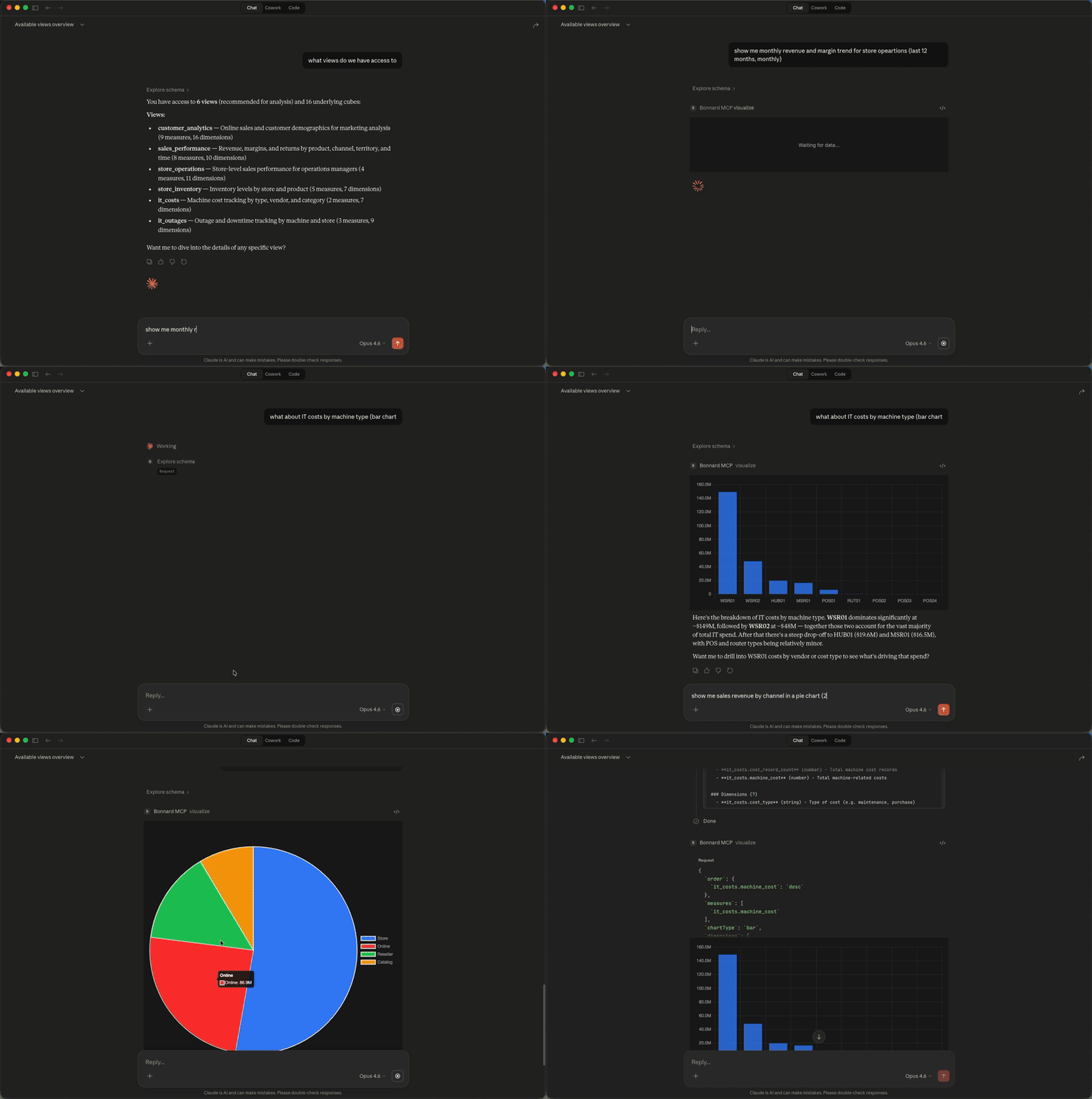
The visualize tool renders interactive charts inline — auto-detected from your query shape. Charts support dark mode, currency and percentage formatting, and multi-series data.
Ask "show me revenue by region this quarter" and get a formatted chart in your conversation, not a data dump.
Testing
# Verify the MCP server is reachable
bon mcp test

# View connection info
bon mcp
Managing Connections
Active MCP connections can be viewed and revoked in the Bonnard dashboard under MCP.
See Also
View Includes
The includes and excludes properties control which cube members appear in a view. Include everything from a cube and selectively exclude fields, or cherry-pick specific members.
REST API
Query your deployed semantic layer using the Bonnard REST API. Send JSON query objects or SQL strings to retrieve measures and dimensions with filtering, grouping, and time ranges.